
Location and Purpose of Workflows
Workflows can be found in the Filter Management section of the Pictue web application.
Workflows allow your organisation to define exactly what metadata should be collected with each image while guiding users through a simple, consistent workflow.
In addition to the selected Tags, every image automatically stores:
- GPS location
- Timestamp
- Photographer
- Organisation


Important: After creating a Workflow, remember to assign it to your users in User Management. Otherwise, they won't be able to use it when capturing images. Read the instructions here.
A Workflow can contain as many levels of information as your workflow requires.
Each selection can lead to a follow-up question, allowing users to progressively refine the image metadata. This makes images much easier to search, filter, and share later.
Creating a Workflow
To create a new Workflow, click Add New Workflows.
Enter a name for the path in the upper-left corner before saving.
Next, click the green Section button to create your first section.
Select the section by clicking near its border so that it becomes highlighted in blue.
The section title is displayed to users in the mobile app and should be used as guidance, for example:
- Select Project
- Work Phase
Section titles are not stored as image metadata.

Next, add either Tag lists or individual Tags from the panel on the left.
You can add multiple Keywords and Keyword Lists to each section.
To create follow-up questions, drag the black connection point from the right side of a Keyword or Keyword List. This creates a new section where you can continue building the workflow with additional choices.
Once your Keyword Path is complete, click Publish Workflow in the top-right corner.
Test the workflow in the mobile app to ensure it behaves as expected.
Important: Don't forget to assign the new Workflows to your users in User Management.
This is how the Workflows appears from the mobile user's perspective.

Editing a Workflow
Select the Keyword Path you want to edit from the light blue Workflow list.
Click the section you want to modify so it becomes highlighted in blue.
You can:
- Add Tags by selecting them from the left-hand panel.
- Remove Tags by clicking the trash bin icon.
When you've finished making changes, click Update Workflow in the top-right corner.
Deleting a Workflow
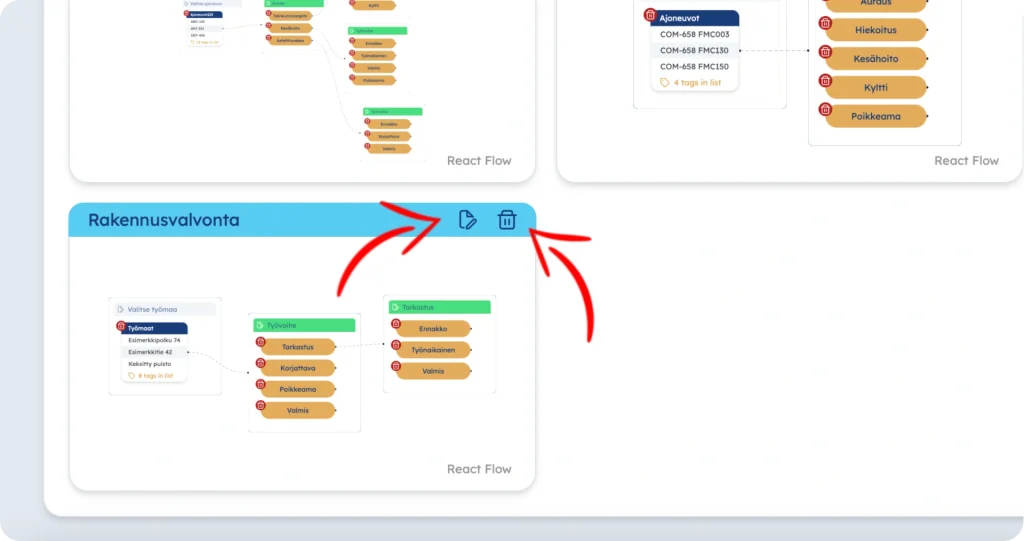
To delete a Workflow, click the trash bin icon next to the path in the management view.
Important: If images have already been captured using the Workflow, consider deactivating the path or removing it from users instead of deleting it completely. This allows existing images to remain searchable while preventing users from selecting the path for new images.
Learn more about activating and assigning Workflows here.
For instructions on creating Tags and Tag Lists, click here.