
User Management is available from the left-hand menu in the Pictue web application after signing in. Access is restricted to users with the Administrator or Senior Manager role.
You can access User Management directly at:
https://web.app.pictue.com/user-management
From User Management, you can:
- Invite new users to your organisation
- Edit existing users' roles and Keyword Path access
- View and update user information
- Remove users from your organisation
Detailed instructions for inviting new users are available here.
The user list also includes search and sorting options, making it easier to manage larger organisations. You can also add free-form notes in the Additional Information field, for example to indicate that a user is a subcontractor working for another company.
Please note that User Management cannot be used to delete a user's personal account, as accounts are personal and must be deleted by the user from their own account settings.
Removing a user from your organisation immediately revokes their access to your organisation's images, Keyword Paths, users, and Keywords.

User Roles
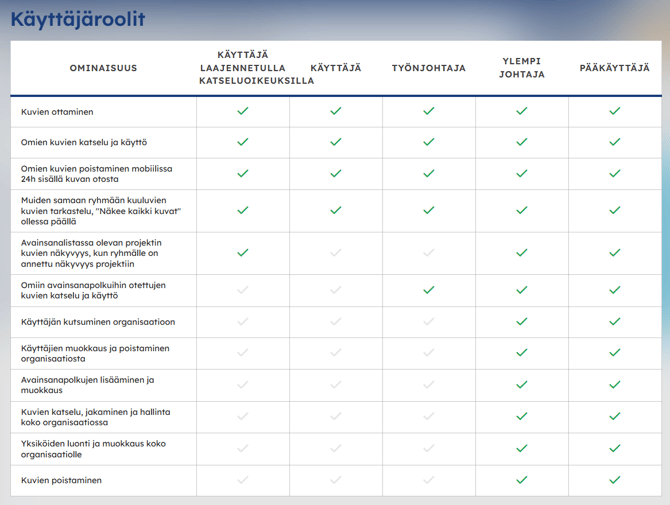
A user's role determines what they can see and do within the organisation.
Key differences between the roles:
- Administrator and Senior Manager have access to all images within the organisation. These roles should be assigned carefully.
- The only difference between these two roles is that an Administrator can remove a Senior Manager, whereas a Senior Manager cannot remove an Administrator.
- A Site Manager can view all images associated with the Keyword Paths they have access to.
- A Photographer can only view images they have captured themselves. For employees who need to see all images within a Keyword Path, we recommend assigning the Site Manager role.

Keyword Paths
Sharing a Keyword Path gives an individual user access to that specific path.
Users who have access to a Keyword Path can select it in the mobile app after taking a photo, allowing images to be tagged with the appropriate Keywords defined for that path.
Important: Users must be granted access to each Keyword Path individually if they need to capture images within that path.
You can manage Keywords and Keyword Paths from Keyword Management.
Learn more here.
