
Location and Purpose of Tag Lists
Keyword Lists are managed from the Filter Management section of the Pictue web application.
They make it easy to manage large collections of Tags, such as projects, worksites, customers, or other frequently used categories.
Once you've created a Tag List, we recommend adding it as the first step in a Workflow. This allows users to assign images to the correct project, customer, or worksite immediately after capturing them, while keeping the rest of the Workflow simple and easy to use.
The list is presented to users immediately after taking a photo in the mobile app.
Keyword Lists simplify the selection of projects or other high-level categories while images are also automatically tagged with metadata such as:
- Timestamp
- GPS location
- Organisation
- Photographer
Creating a Tag List
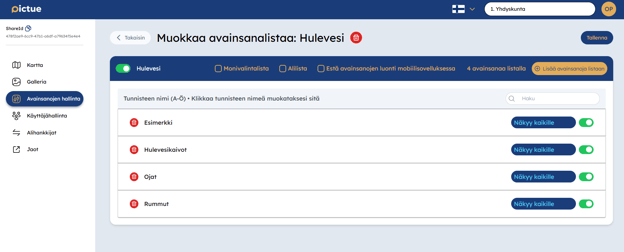
Create and manage Tag Lists from the Tag Lists section within Filter Management.
Click Create New List.
First, enter a name for the list.
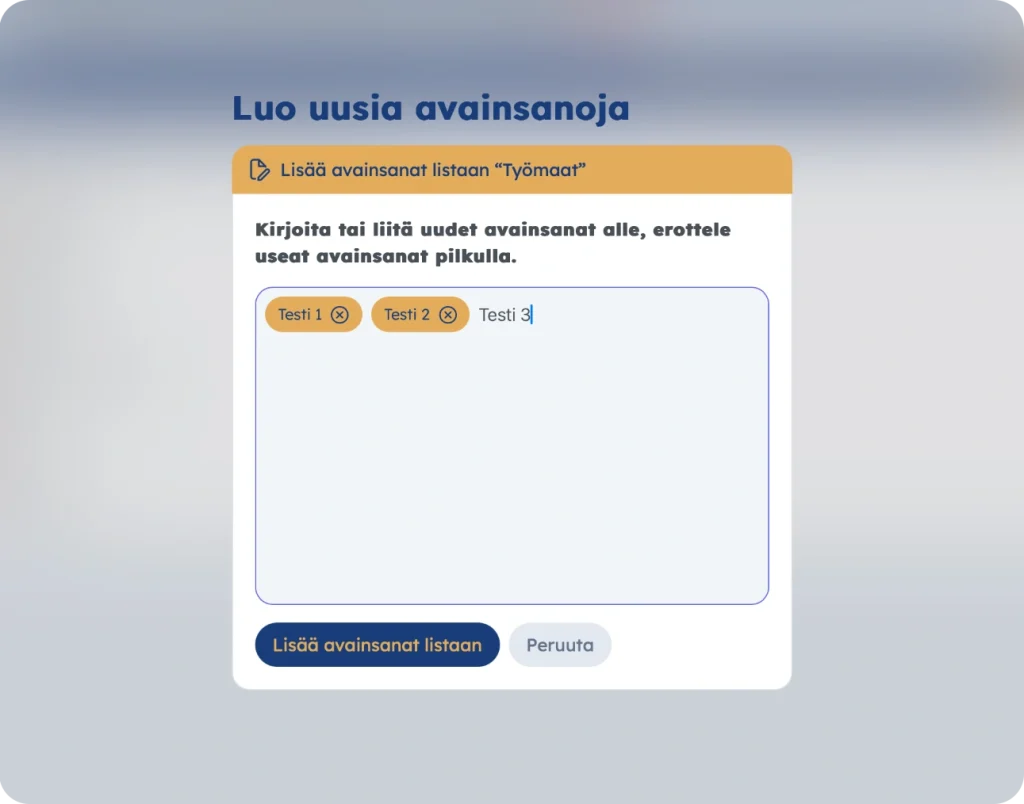
Next, click Add Tags and enter your list values, separating each entry with either a comma or by pressing Enter.
You can configure the list to allow either:
- Single selection
- Multiple selection
Important: After adding your Keywords, click Create New List to save the list.
Additional List Options
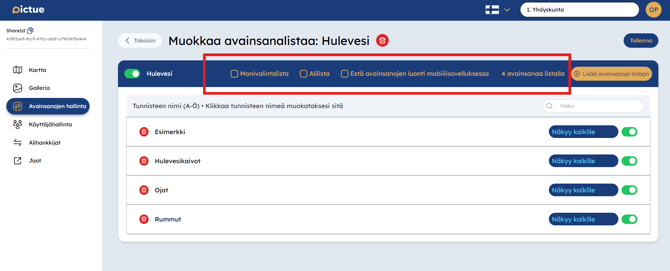
When creating a list, you can also configure the following options:
Multi-select List
Allows users to select multiple values from the list when tagging an image.
Sublist
Create child values beneath existing Tags.
For example, you could organise:
- Apartments within an apartment building
- Streets within a specific area
- Any other hierarchical structure
Prevent Mobile Tag Creation
When enabled, users cannot create new Keywords from the mobile app.
This helps ensure users select existing values instead of creating duplicate or inconsistent Keywords. While this improves data consistency, it also reduces flexibility, so it should be enabled only when appropriate.
Editing a Tag List
Select an existing Tag List to edit it.
You can add, remove, or modify the list's Keywords.
Important: If a Tag has already been used for image documentation, it is recommended to deactivate it instead of deleting it. Deactivated Tags remain available for filtering existing images but are no longer available for selection in the mobile app.
Deleting a Tag List
To delete a list, open it for editing and click the trash bin icon next to the list name.
Important: If the list has already been used for image documentation, consider deactivating it instead of deleting it. This preserves its use for filtering historical images while preventing it from being used for new images.
Learn how to add a Tag List to a Workflows here.