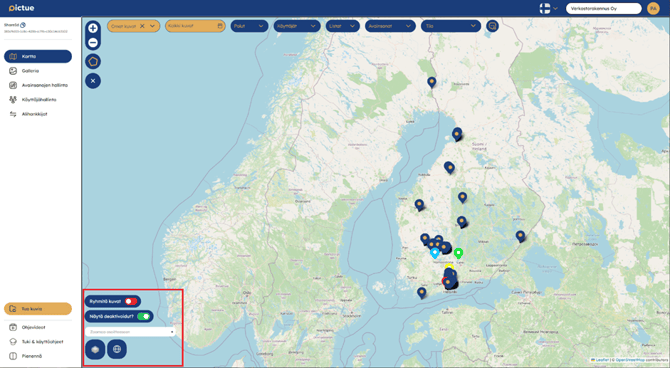
The Map View opens automatically when you sign in to the Pictue web application.
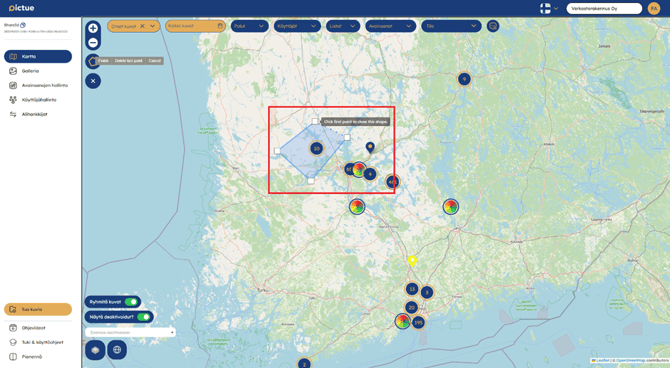
From the Map View, you can view the locations of captured images, select an area to display its images in the Gallery View, and filter the images shown on the map using the filters at the top of the page.
Available filters include:
- Organisation
- Date range
- Keyword Paths
- Users
- Keywords
- Keyword Lists
- Comments
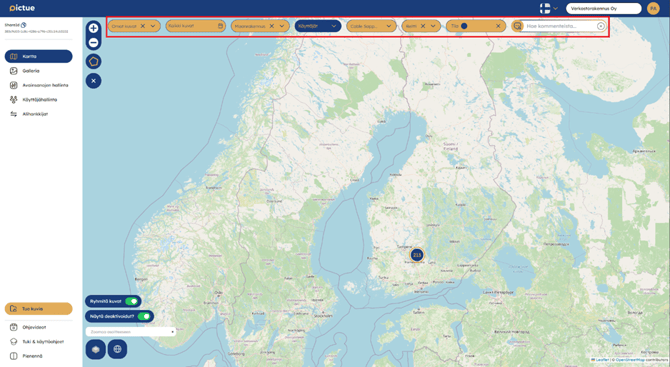
You can switch seamlessly between the Map and Gallery views without losing your selected filters.
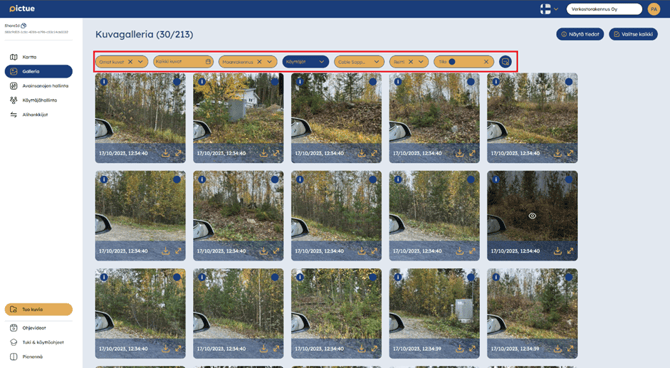
You can switch seamlessly between the Map and Gallery views without losing your selected filters.
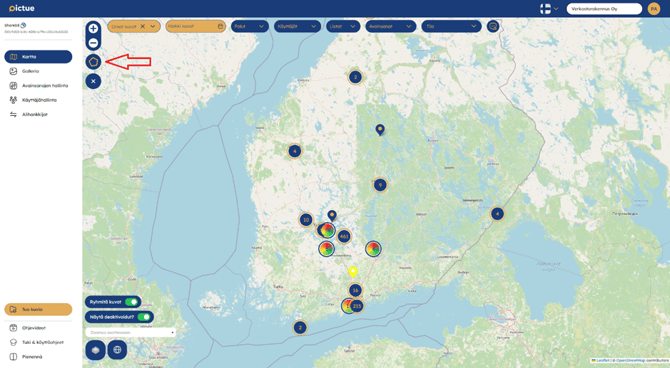
When you draw an area using the map selection tool, the Gallery View opens and displays only the images within the selected area, while keeping your current filters applied.
You can continue adjusting the filters in the Gallery without losing the selected map area.
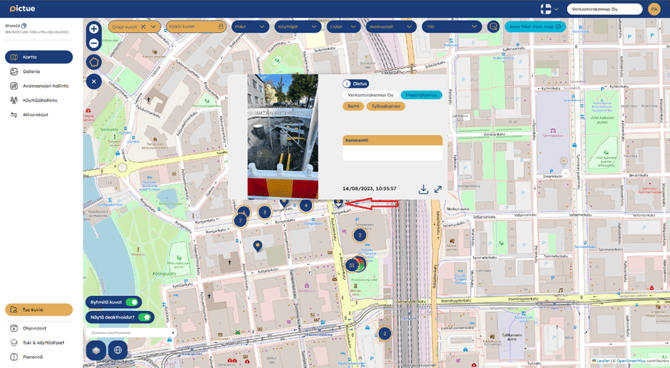
You can also open an individual image directly from the map by clicking its map marker.
In the bottom-left corner of the map, you'll also find:
- Address search
- Image clustering options
- Show/hide deactivated Keywords
- Map layer selection