
In the My Profile page in the web application, you can update your personal information and change your password.
In the mobile app, your personal information can be managed from My Profile, while password changes are available separately under Settings. Both options can be accessed from the Settings menu.
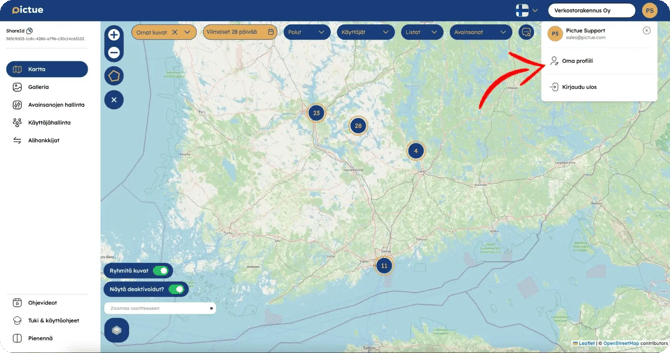
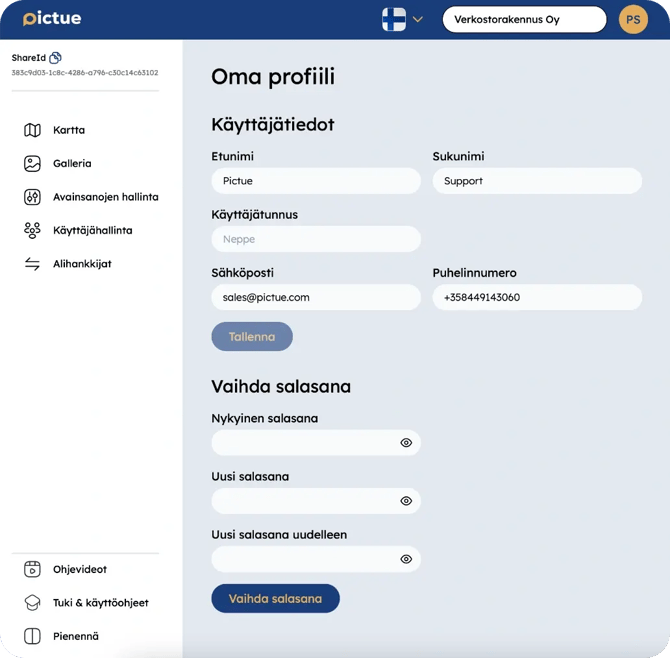
In the web application, you can update your first name, last name, phone number (in the format +358123456789), email address, and password.
Changing your password is simple. Enter your current password in the first field, then enter your new password in the next two fields to confirm it. Your password must be at least 9 characters long.
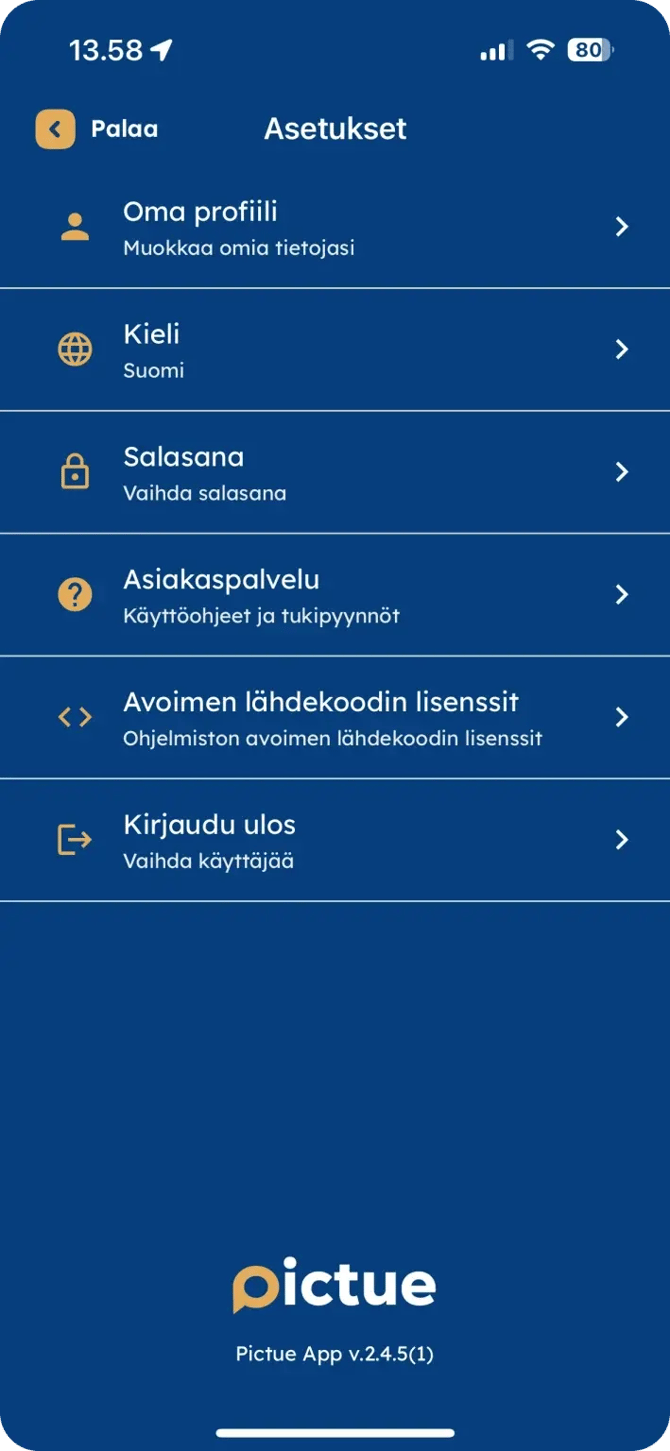
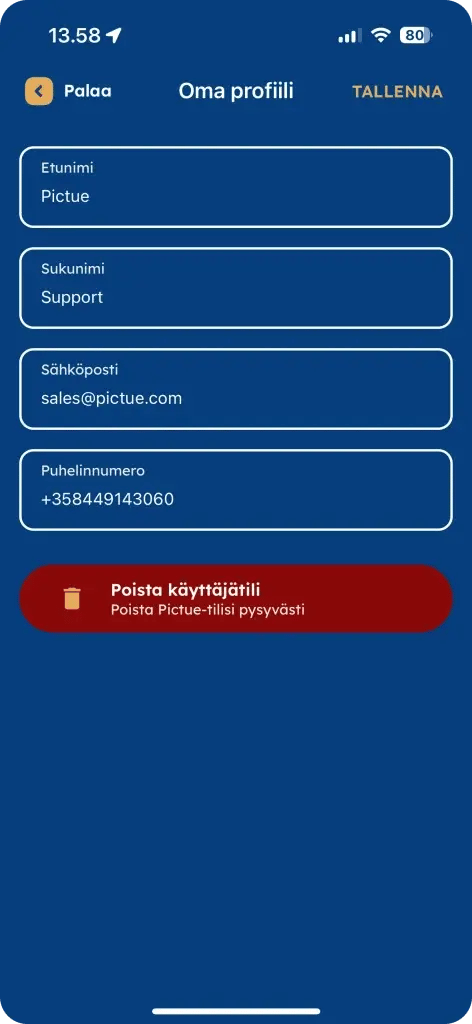
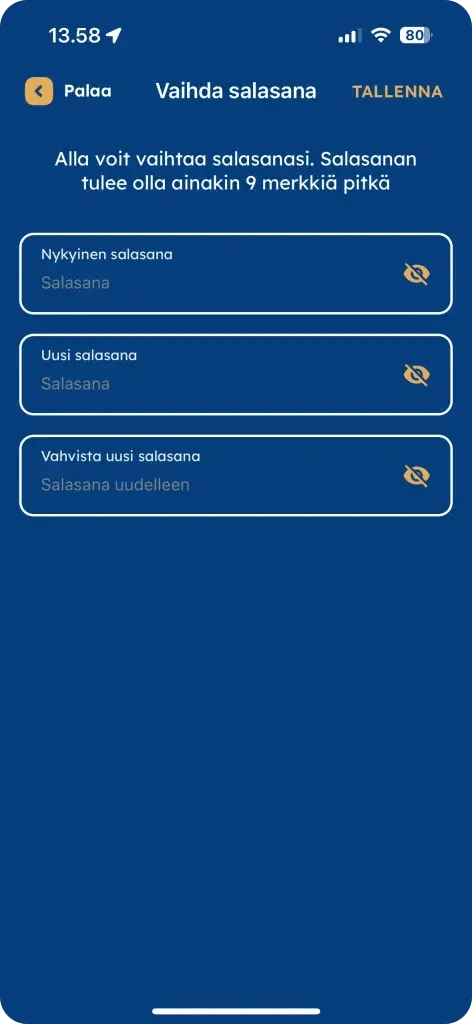
In the mobile app, you can also update your first name, last name, email address, and phone number. You can also change your password from its dedicated page.
When updating your phone number or email address, make sure the information is correct. An incorrect phone number or email address could allow unauthorised access to your organisation's images or prevent you from regaining access to your own account.
Deleting Your User Account
You can permanently delete your user account from the Settings menu in the mobile app.
Important: Deleted user accounts cannot be recovered.
Any images you have captured will remain stored within your organisation and will not be deleted when your user account is removed.