
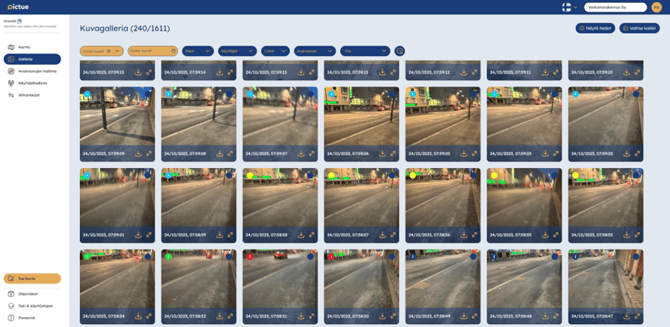
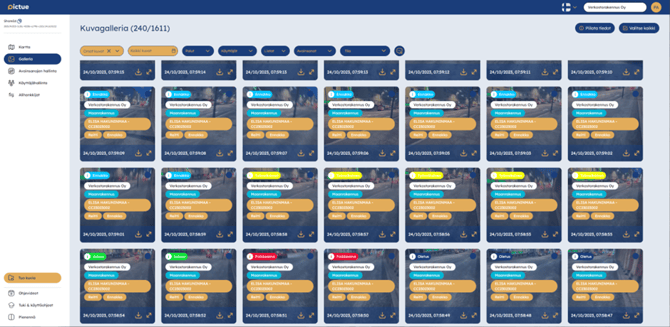
In the Gallery View, you can browse images based on your selected filters. Without any filters applied, you'll see all images in your organisation that you have permission to access.
You can freely switch between the Gallery and Map views without losing your selected filters. The Map View also includes an area selection tool for filtering images by location.
Viewing Images
You can view images and their details in several ways:
- Click an image to open it.
- Click the Info icon in the top-left corner of an image to view its metadata.
- Click Show Details in the top toolbar to display metadata for all images.
Selecting Images
You can select images by:
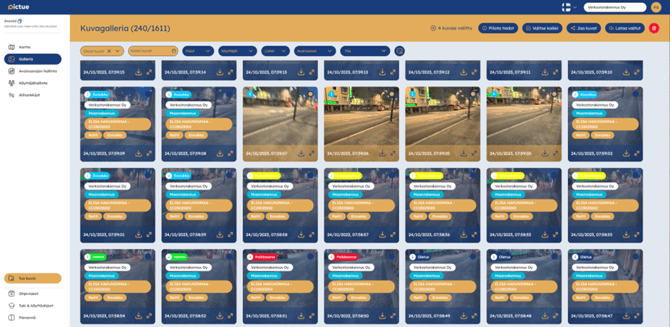
- Clicking the selection circle in the top-right corner of each image.
- Clicking Select All in the top-right corner of the page.
Once your images have been selected, you can download or share them.
Sharing Images
Images can be shared in several ways, including:
- Directly between Pictue organisations
- Via secure share links
- Automatically through the subcontractor model
Learn more about sharing images here.
Downloading Images
Downloading a single image saves the original image file.
When downloading multiple images, Pictue automatically creates a ZIP archive containing all selected images.
Learn more about downloading images here.
Image Status
An Image Status is a customisable label that can be assigned to an image. Each status has its own name and colour.
The selected colour is displayed as the image marker on the map and as the indicator in the Gallery, allowing you to identify an image's status at a glance without opening it.
You can also filter images by Image Status in both the Map and Gallery views.
Learn more about Image Statuses here.