
Images can be viewed in both the Pictue web application and the mobile app Gallery.
In the mobile app, the Gallery is located in the bottom-right corner of the screen. Tap the Gallery icon to view all images you have permission to access, displayed in chronological order.
Before browsing your images, make sure your image search filters are set as required. The Map and Gallery views share the same filters, and these remain active when switching between the two views.
From the Gallery, you can:
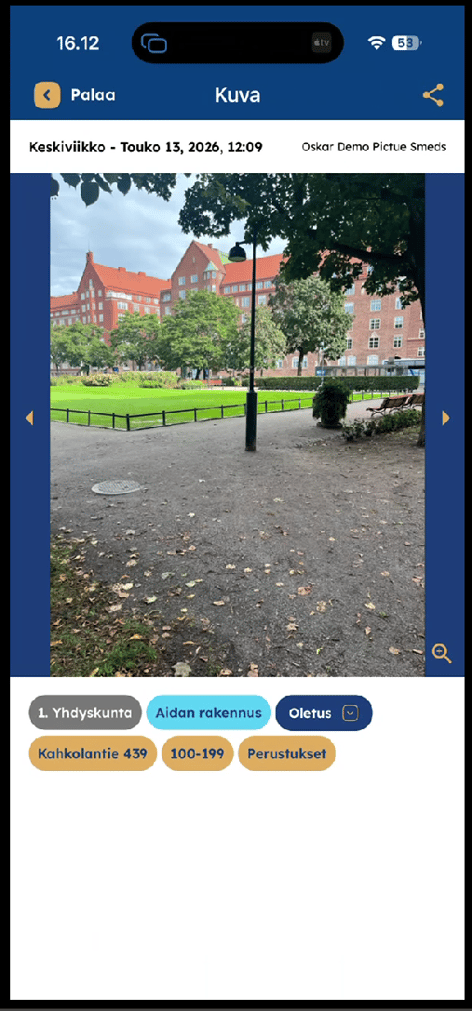
- View images by tapping them.
- Adjust the image search filters.
- Select and share images using the Search Images and Select options at the top of the screen.

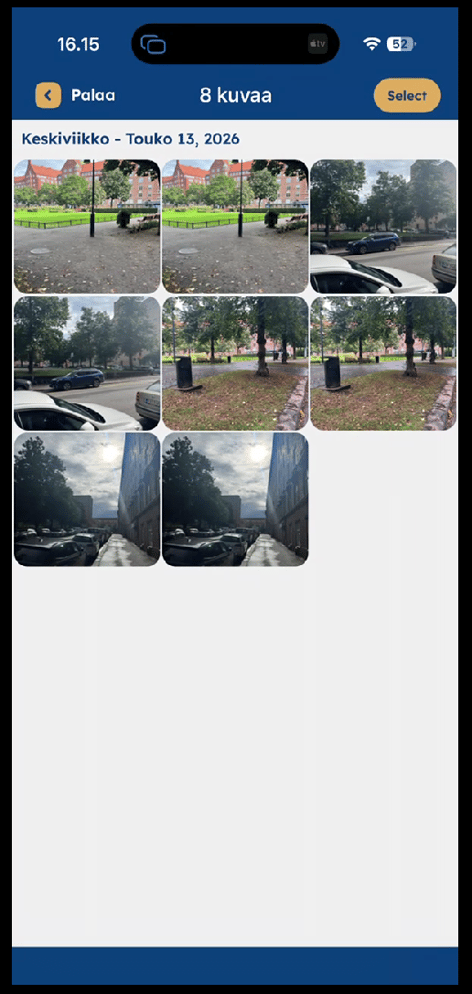
After selecting your images, the Gallery displays the number of selected images along with the Share button.
You can either:
- Create a share link and copy it to your clipboard. Anyone with the link can view the selected images and their associated information in a web browser—no Pictue account is required.
- Share the images directly to other apps installed on your mobile device.
Please note that when sharing image files directly through other apps, some metadata may be removed by either the receiving application or your Pictue export settings.
For this reason, we recommend using link sharing, which preserves image information and is fully optimised for mobile devices, allowing recipients to view images easily on their phones or tablets.

