
Deactivating Tags and Tag List Items
Individual Tags, Tag Lists, and Tag List items can all be deactivated separately.
In most cases, deactivation is recommended instead of deletion. Unlike deleted items, deactivated Tags and Tag List items remain available in filters, allowing you to locate historical images—even years later.
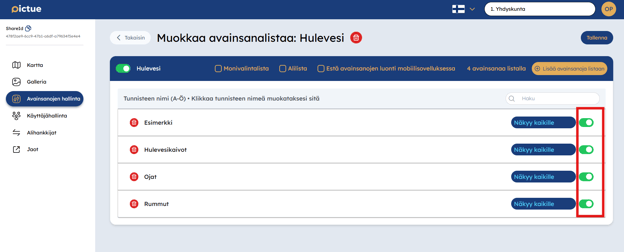
To deactivate a Tag or Tag List item:
- Open Tag Management.
- Click the Edit button next to the Tag or Tag List.
- Toggle the Active switch from green to red.


Benefits of Deactivating Tags
Deactivating Tags helps keep your image library organised while preserving historical documentation.
Cleaner Views
Hide outdated Tags, such as completed construction projects, so that only active and relevant images are displayed in the Map and Gallery views. This reduces visual clutter and makes important information easier to find.
Better Organisation
Deactivating old Tags keeps your metadata organised and allows current projects to stand out more clearly—particularly in organisations managing large volumes of images.
More Accurate Searches
Inactive Tags no longer appear as selectable options during new image classification, but they remain available for filtering historical images. This improves search accuracy while preserving access to archived documentation.
Simpler Project Management
Removing inactive Tags from day-to-day workflows makes it easier to monitor active projects and ensures users work with up-to-date classifications.
Fewer Distractions
By hiding obsolete Tags from new image workflows, users can focus on current projects without navigating through outdated options.
Deactivating Tags is an effective way to keep your image archive clean, organised, and easy to search while preserving the integrity of your historical documentation.